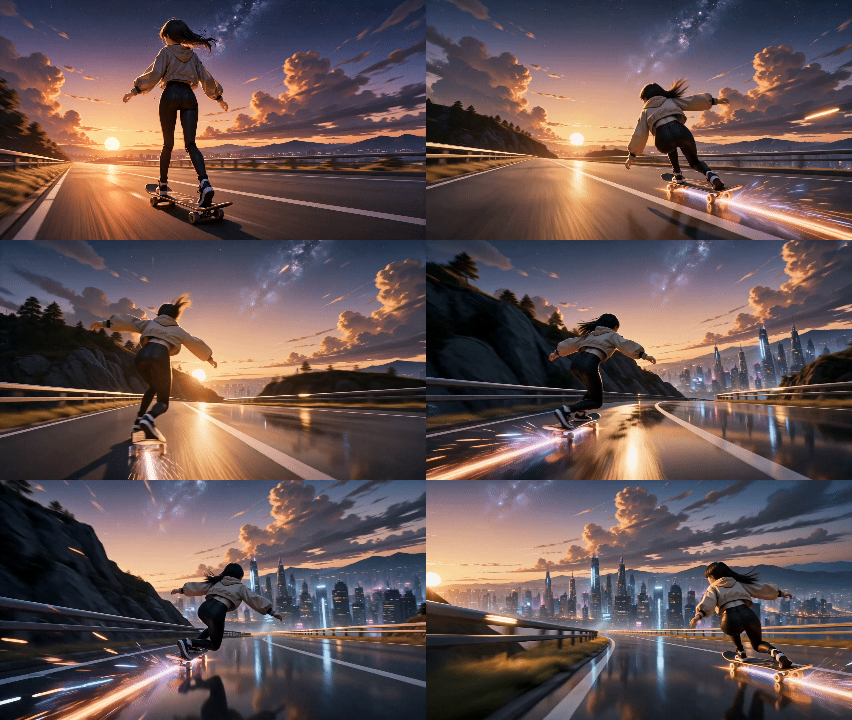
AI video creation has officially entered the era of "high consistency + high-fidelity motion." Today, our Image to Video feature is fully integrated with the Seedance 2.0 model, bringing creators smoother, more stable, and cinematic video generation capabilities.
|
From character movements and emotional expressions to high-speed camera panning, Seedance 2.0 generates incredibly natural and fluid motion. Complex actions are no longer prone to glitching, camera transitions are significantly more stable, and the overall video delivers a highly premium visual experience.
|
Key Upgrades in Seedance 2.0
|
·Fully Enhanced Motion Performance
|
The model’s comprehension of motion details has been further elevated. Whether it's fighting, cycling, or dancing, as well as the dynamic secondary motion of capes, hair, and clothing, it delivers more realistic physics and inertial feedback, making the overall movement significantly more seamless and natural.
|
·More Realistic Lighting and Atmosphere
|
Seedance 2.0 simultaneously enhances cinematic lighting and atmospheric rendering. Ambient light, volumetric lighting, particles, depth of field, and bokeh effects are now significantly more refined, allowing you to effortlessly generate cinematic video content with a powerful visual impact.
|
·Rock-Solid Character Consistency
|
When it comes to character consistency, Seedance 2.0 delivers superior retention of facial features, attire, and body structures. Even during high-amplitude movements or long takes, it maintains a stable character identity, making it ideal for anime, character-driven storytelling, and sequential shot creation.
|
We have officially integrated Seedance 2.0 into our Image to Video feature. Simply upload an image to quickly generate more stable, fluid, and cinematic videos.
|
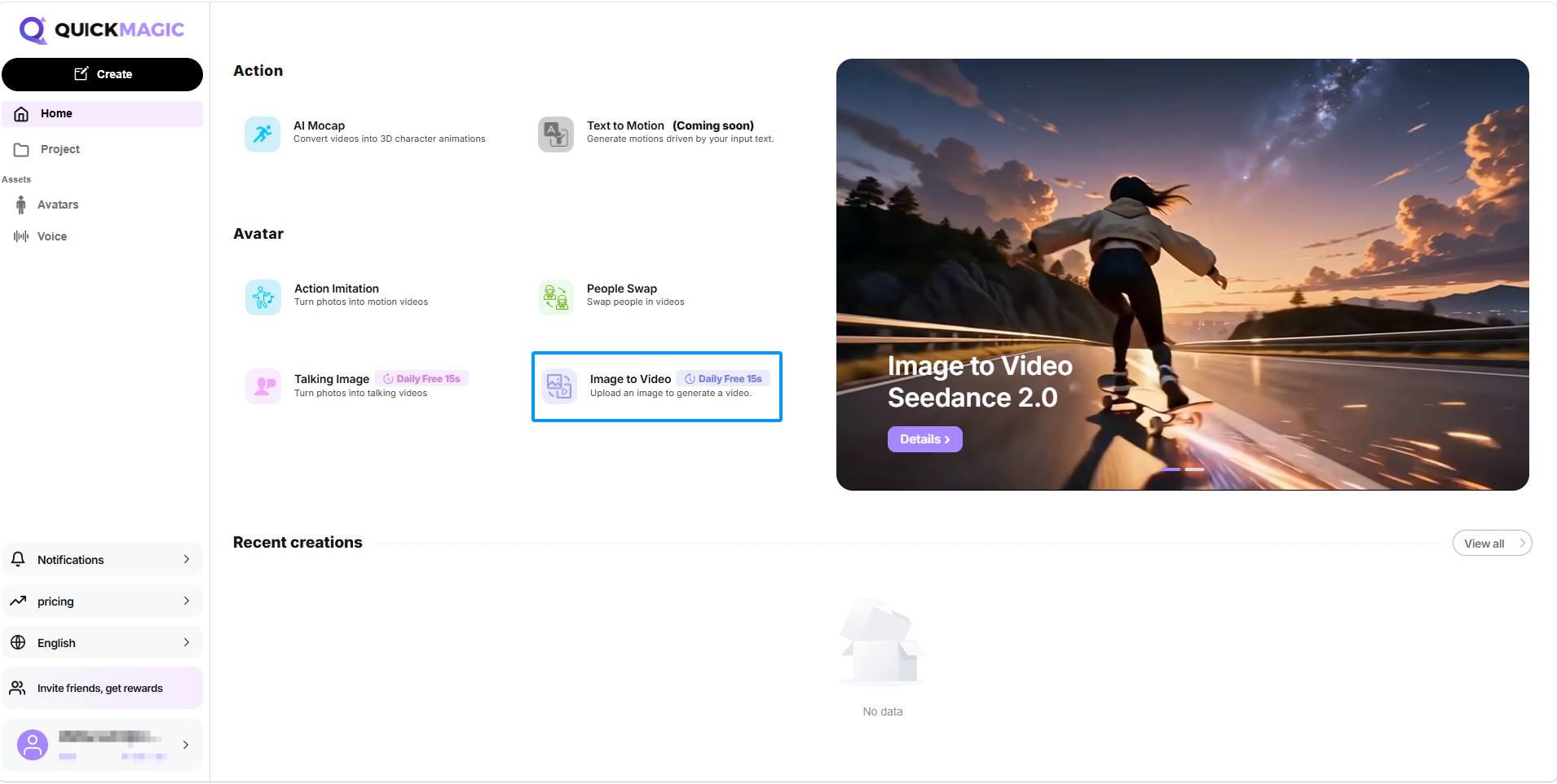
Step 1: Visit the Official Website
|
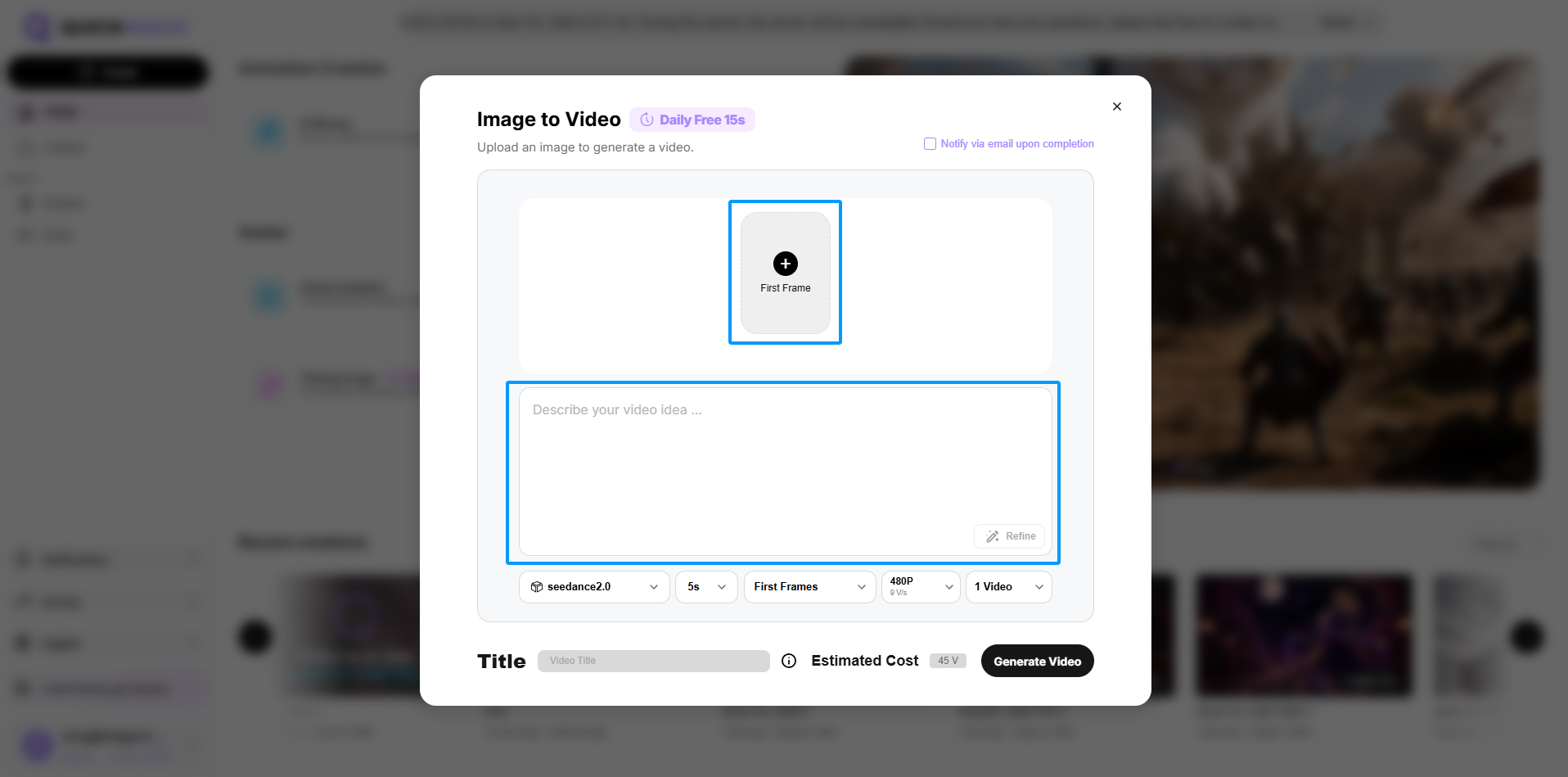
Step 2: Upload your image and enter the prompt
|
On the "Image to Video" interface, upload your image and enter the prompt.
|
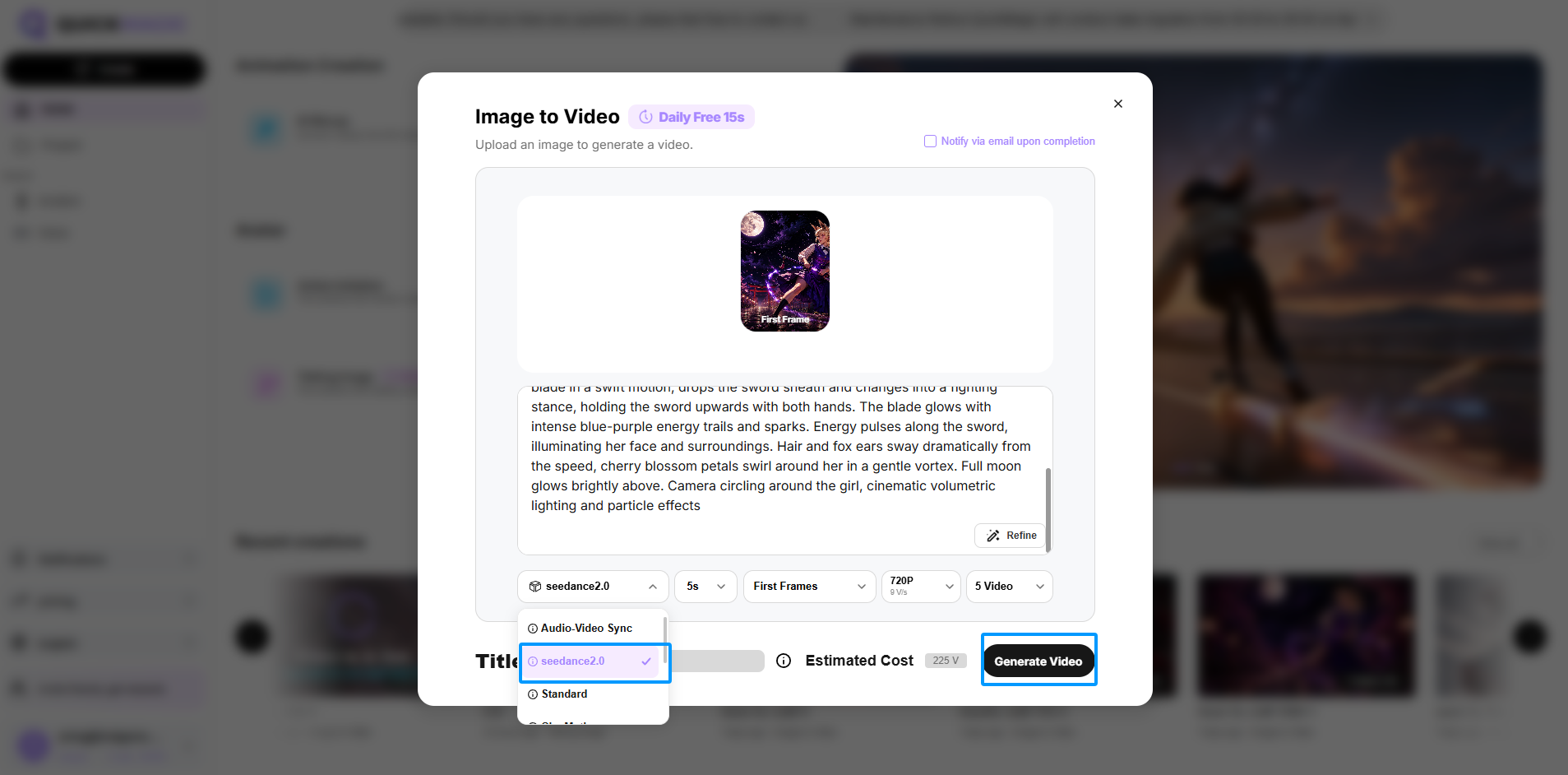
Step 3: Select the Seedance 2.0 model
|
At the bottom of the Image to Video interface, select the Seedance 2.0 model, adjust other settings as needed, and then click "Generate Video."
|
Experience Seedance 2.0 now and bring a single image truly to life.
|
Best regards,
QuickMagic Team
|
|