Clermont News
- Letter From Mrs. Salata
- School Devices
- Video Demonstration on Student ID Card Use
County Info
- Student ID Cards
- Transportation Patience and Safety
- Military Kids Club
- SIS ParentVUE
- Parent Digital Consent
- FCPS Mobile App
Quick Links- click here for fast access to important links!
https://linktr.ee/ClermontES
PTA News
- Back to School Celebration
Calendar
Dear Clermont Families,
What a wonderful first week! It was a privilege for Mrs. Younger and I to welcome our new and returning Eagles back to school. This year, we continue our focus on helping students Acquire, Aspire, and Achieve—guided daily by kind words, kind actions, and kind thoughts.
Save the Date! Upcoming Events:
-
PTA Back to School Celebration: Wednesday, Sept. 2 | 5:00–7:00 PM (Playground)
-
Back to School Night: Wednesday, Sept. 9 | 6:00–7:30 PM
Warmly,
Mrs. Salata, Principal
Parents and guardians, there are two forms that need to be filled out prior to students being issued a device. Please access the Linktree at the top of this page in the "Quick links" section to complete the Clermont Elementry School Technology Agreement form and the Digital Resources Consent Form.
Student ID Cards
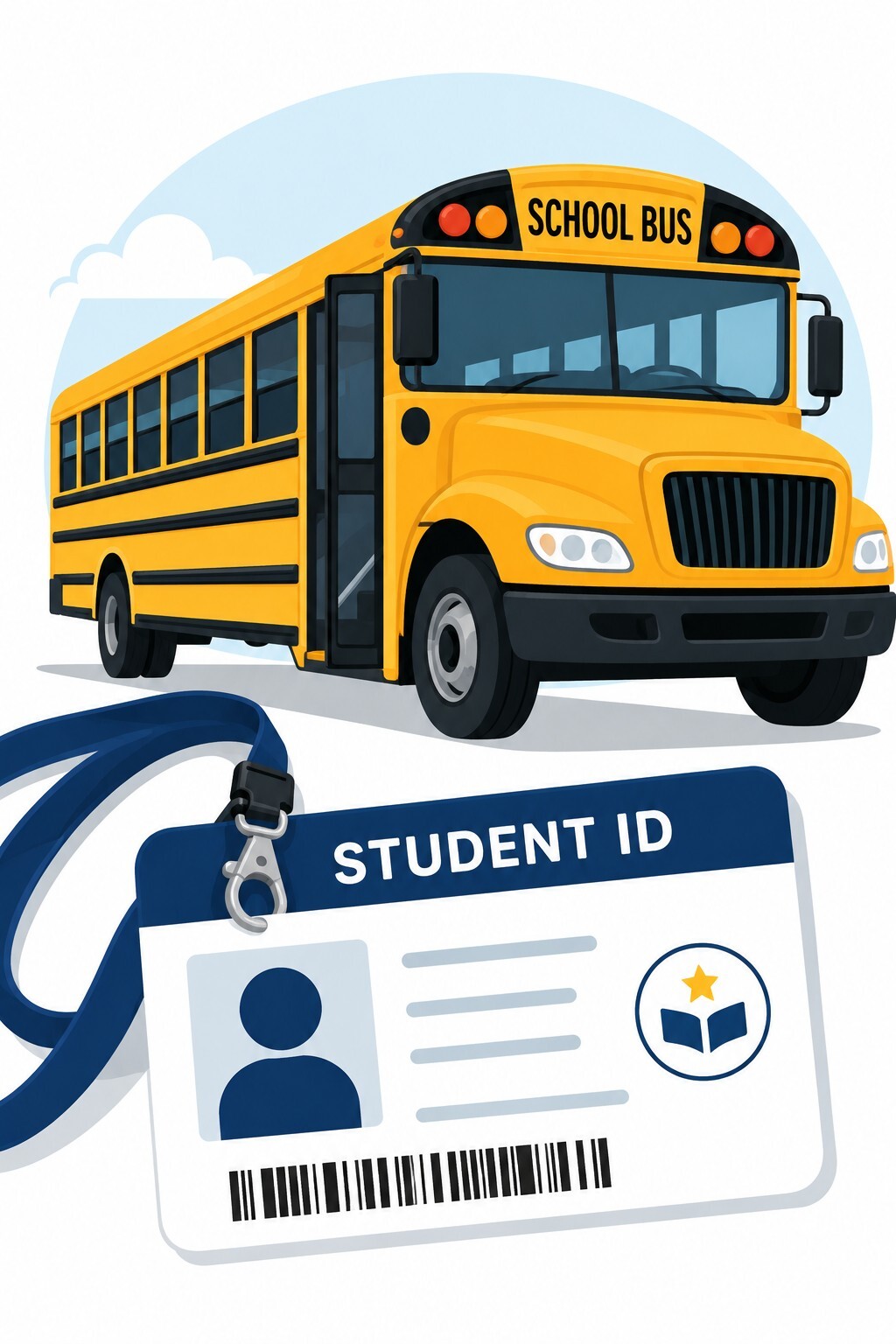 Student ID Cards for Clermont Elementry School Bus Riders
Clermont will begin distributing student ID cards to all our students who ride the school bus or use FCPS transportation services next week.
The office staff will be distrubuting the student ID cards to our students who ride the bus, and will attach them to backpacks with a bungee lanyard. These ID cards should remain attached to your child's backpace and brought to the bus each day.
Watch this video of Mrs.Salata demonstrating how the student ID bus cards will be used.
https://www.youtube.com/watch?v=bs8_szSLvao
Students who have student ID cards should begin tapping as they board and exit the bus. Only students who use FCPS transportation services will be provided with a student ID card at this time.
We ask for your patience! Bus drivers are checking in students and may need some extra time at each bus stop while they do this. The transportation team is working hard to minimize any potential delays.
Learn more about the bus navigation and student ID cards.
Thank you for your patience as we all get used to new routines this school year. We appreciate our families following Kiss and Ride procedures and being patient while waiting for your child’s bus.
If your child’s bus is delayed, you may access the Bus Delay Notification System or use the Here Comes the Bus mobile app to receive the delayed bus report. Email messages will be sent to announce significant bus delays. Please contact the Transportation Office at 703-446-2150 with any additional questions. For concerns after 5:30 p.m., contact the FCPS Office of Safety and Security at 571-423-2000.
Update your contact information in SIS ParentVUE to make sure you receive email messages about bus delays.
-
Spanish: Paciencia y Seguridad en el Transporte
Muchas gracias por su paciencia mientras todos nos acostumbramos a las nuevas rutinas de este año escolar. Apreciamos que nuestras familias sigan los procedimientos de Kiss and Ride, y que sean pacientes cuando esperan a los autobuses de sus hijos. Si el autobús de su hijo está retrasado, los padres pueden acceder el sistema de notificaciones de retrasos de autobuses o usar la aplicación móvil Here Comes the Bus para recibir el reporte de retraso de autobuses. Para reportar retrasos considerables de autobuses se enviará un correo electrónico. Contáctese con la Oficina de Transporte llamando al 703-446-2150 si tienen preguntas adicionales. Para cualquier preocupación después de horas (después de las 5:30 p.m.), comuníquese con la Oficina de Seguridad llamando al 571-423-2000.
Para asegurarse de que recibirán mensajes de correo electrónico cuando haya un retraso de autobuses, actualicen su información de contacto en SIS ParentVUE.
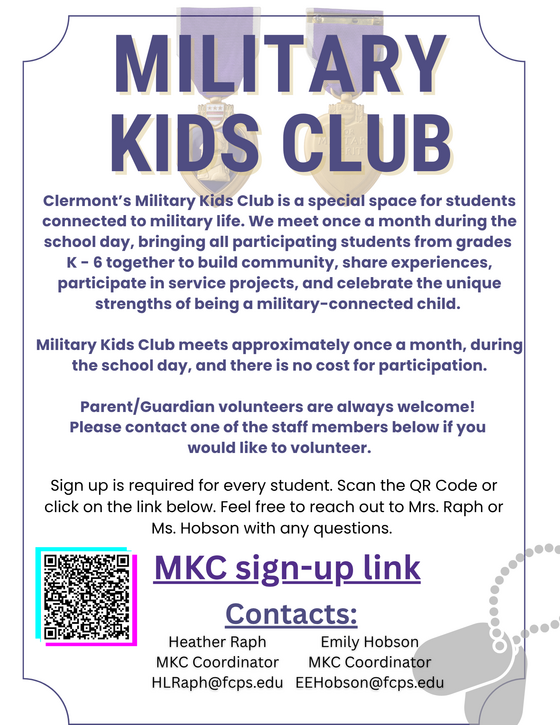
Clermont’s Military Kids Club Sign-up Link: https://docs.google.com/forms/d/e/1FAIpQLSfyTOObyvm33DjMzXLvO2IicQNKDdt8UFJuysgc-JqIAnBfqQ/viewform
Everything You Need to Do in SIS ParentVUE
Are you working your way through back-to-school forms and checklists? Make sure you have a SIS ParentVUE account for your family and log in to find important forms and updates.
- Be among the first to know about weather closings, bus delays, and other critical communications from your school and FCPS by providing your cell phone number and email in ParentVUE. To update your contact information in ParentVUE, click the “Online Packets” tab in the upper right of the screen, then click the “Online Verification/Update” icon.
- Submit daylong absences by clicking “Report Absence.”
If you do not have a ParentVUE account, contact your child’s school for an activation code and follow the directions on the SIS ParentVUE Account webpage.
Todo lo que puede hacer en SIS ParentVUE
¿Está completando formularios para el regreso a clases? Asegúrese de tener una cuenta de SIS ParentVUE para usted y su familia e inicie sesión para revisar formularios importantes y actualizaciones.
- Sea de los primeros en recibir información acerca de suspensiones por cuestiones del clima, retrasos de autobuses y otras noticias importantes de su escuela y de FCPS. Para recibir estos mensajes, asegúrese de incluir su número de teléfono celular y correo electrónico en ParentVUE. Para actualizar su información de contacto en ParentVUE, haga click en la pestaña “Online Packets” en la parte superior derecha de la pantalla y luego seleccione el ícono “Online Verification/Update”.
- Si su estudiante no asistirá a la escuela por el día completo, puede reportar la ausencia en ParentVUE haciendo click en “Report Absence”.
- Revisar los registros de vacunación de su estudiante y enviar actualizaciones en caso de que sea necesario. Visite la página web Como enviar documentación de vacunación para ver instrucciones paso a paso.
Si no tiene una cuenta de ParentVUE, comuníquese con la escuela de su estudiante para solicitar un código de activación y siga las instrucciones en el sitio web Cuenta de SIS ParentVUE.
Remember to Complete Permission Forms for School Resources
Families can now easily grant consent for their children to access a variety of school resources through the Parent Digital Consent system. This online tool can be accessed using your SIS ParentVUE account login. Parents can easily opt their child in or out of a variety of resources, including online educational tools, school counseling services, and more.
Visit the Parent Digital Consent webpage to access the system. Watch this video to see how to use the tool.
Opt In or Out to Student Devices Being Sent Home for Grades 1-6
New this year, families can opt out of having student laptops sent home with their student.
- If you do not want your student to bring their FCPS-issued device home, please toggle the Opt Out button to a check mark and confirm by pressing Save Selection.
- If you would like your student to bring their FCPS device home, no toggle action is needed. Confirm by pressing Save Selection.
Students whose families opt out will continue to have access to an FCPS-issued device during the school day. Please reach out to your student’s teacher to understand expectations for homework and any learning activities that may require access to technology outside of the school day.
No olvide completar los formularios de autorización para recursos escolares.
Las familias ahora pueden autorizar fácilmente el acceso de sus estudiantes a diversos recursos escolares a través del sistema de Consentimiento Digital para Padres. Puede acceder a esta herramienta en línea con los datos de inicio de sesión de su cuenta de SIS ParentVUE. Los padres pueden autorizar o rechazar fácilmente el acceso de sus estudiantes a distintos recursos como recursos educativos en línea, servicios de consejería escolar y muchos más.
Visite la página de Consentimiento Digital para Padres para acceder al sistema. Vea este video para aprender a utilizar la herramienta.
¿Tiene un estudiante en los grados del 1 al 6? Usted puede decidir si lleva su dispositivo de FCPS a casa.
Como novedad este año, las familias pueden decidir que las computadoras portátiles de los estudiantes se queden en la escuela.
- Si no desea que su estudiante lleve a casa el dispositivo proporcionado por FCPS, active la opción Opt Out hasta que aparezca una marca de verificación y confirme su selección presionando Save Selection.
- Si desea que su estudiante lleve a casa el dispositivo proporcionado por FCPS, no necesita activar ninguna opción. Confirme su selección presionando Save Selection.
Los estudiantes cuyas familias decidan que el dispositivo se quede en la escuela seguirán teniendo acceso a un dispositivo proporcionado por FCPS durante el día escolar. Comuníquese con el maestro o la maestra de su estudiante para conocer las expectativas relacionadas con las tareas y cualquier actividad de aprendizaje que pueda requerir acceso a tecnología fuera del horario escolar.
Have Children in Multiple FCPS Schools? |